(For the Korean version, click here)
We live in an era where you can spin up a server with just a single click—a “one-click setup”—on cloud platforms like AWS or GCP. It’s incredibly convenient. So, it’s fair to ask: “Does an engineer really need to know how to install an OS manually anymore?”
In my opinion, the answer is a resounding yes. If you only rely on pre-built cloud images, the OS remains a “black box” to you. When a problem occurs deep within the system or the network, you won’t even know where to start troubleshooting without these core fundamentals.
Installing a Minimal OS manually is like learning how an engine works before you start driving. You need to understand the foundation to truly control your environment. Plus, compared to bloated versions that are over 10GB and take forever to download, the Minimal version is only around 1GB—it’s fast, light, and efficient.
1. Essential Installation Checklist
Set these two things during the installation to save yourself from a lot of “headaches” later.
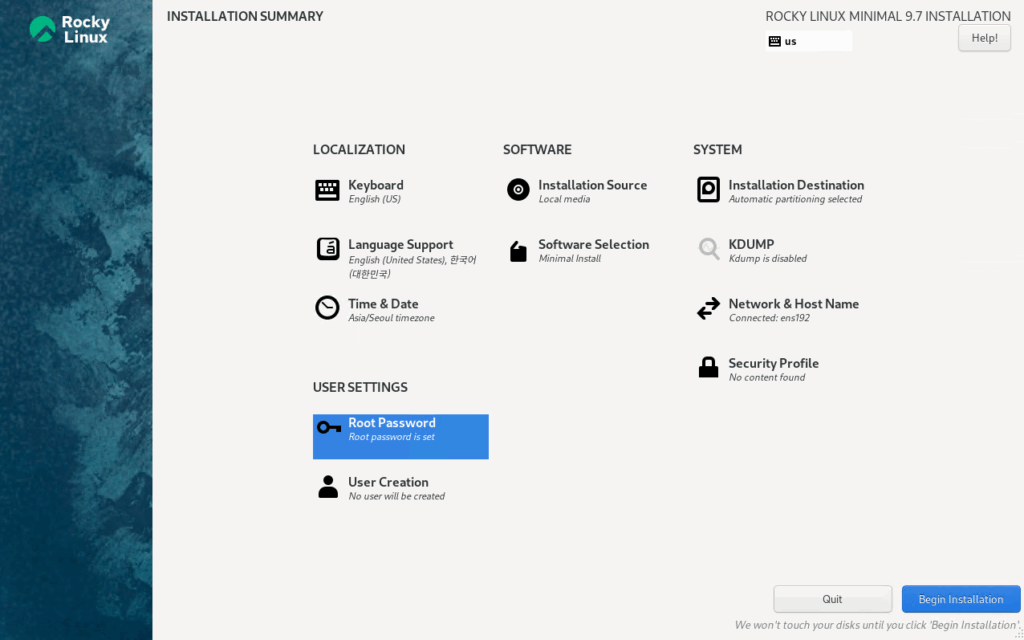
- Turn the Network ON: In the Minimal version, if you don’t enable the network here, you’ll be stuck editing text-based config files just to get internet access. Go to ‘Network & Host Name’ and toggle the Ethernet switch to ON.
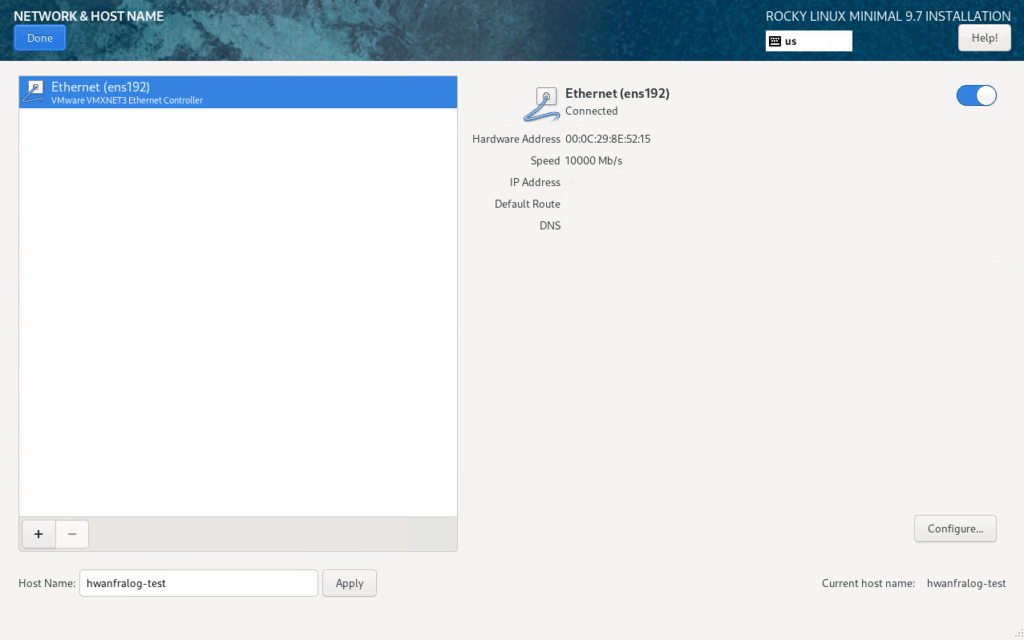
- Allow Root SSH: Under the ‘Root Password’ menu, make sure to check ‘Allow root SSH login with password.’ This will let you connect remotely from your PC later without any extra hassle.
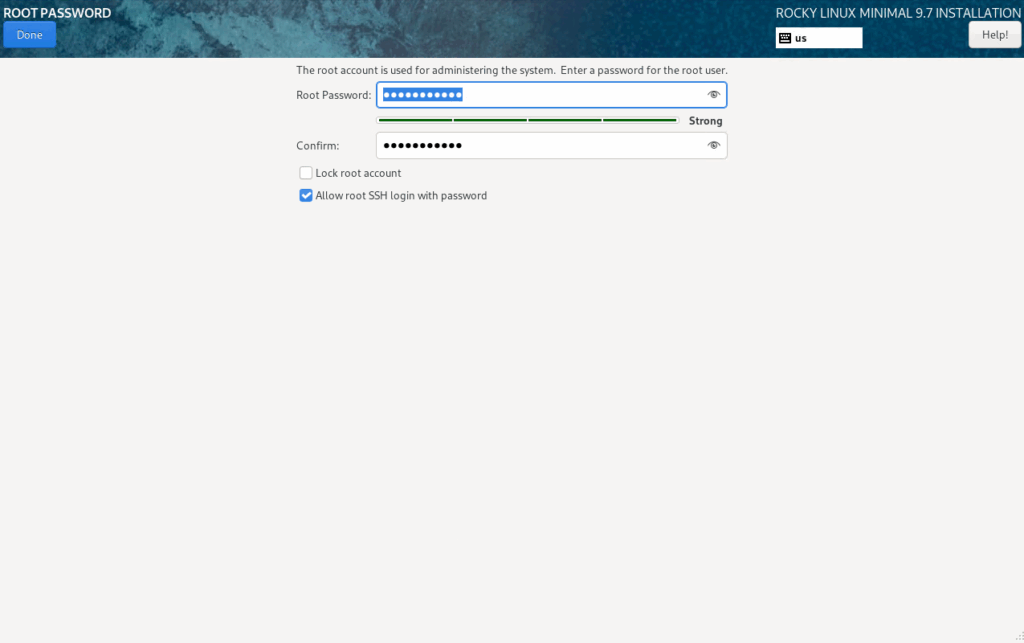
2. Post-Install: Checking the OS Version
Once the install finishes and you log in as root for the first time, verify that you actually got the version you wanted.
# Check Rocky Linux version
cat /etc/rocky-release

# Expected Output:
# Rocky Linux release 9.7 (Blue Onyx)
It’s a good habit to always verify your foundation before building anything on top of it.

3. Disabling the Firewall (firewalld OFF)
Now, let’s kill the firewall. On a production server, you’d need strict rules, but for a learning lab? It usually just gets in the way. If your connection fails later, 90% of the time it’s because of the firewall. Let’s just disable it for now.
# Stop the service immediately
systemctl stop firewalld

# Keep it from starting on boot
systemctl disable firewalld

# Make sure it's actually inactive
systemctl status firewalld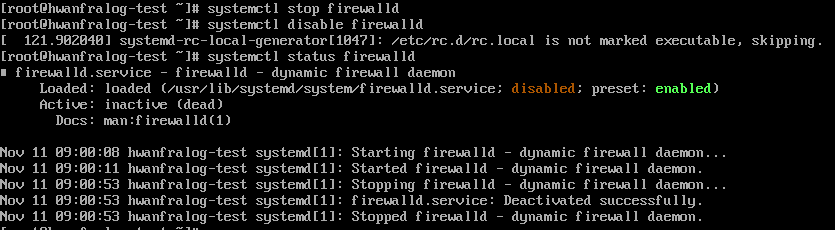
4. Remote Access via SSH
You don’t want to be stuck at the server console all day. Let’s get in from your main PC.
1) Find your Server IP Run this on the server:
ip aLook for the inet address under your interface (like enp0s3 or eth0).
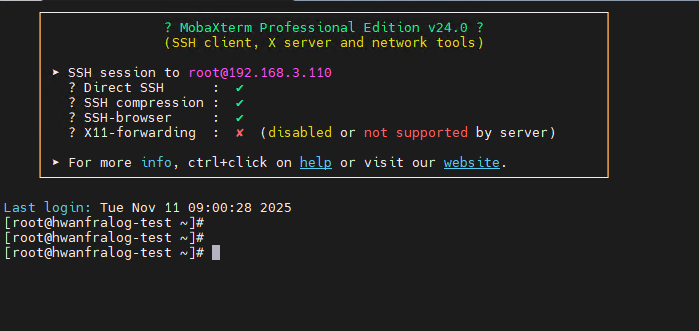
2) Connect from your PC Open your terminal (CMD, PowerShell, MobaXterm, etc.) and type:
💡 An Engineer’s Take
“One-click cloud setups are fast, but they don’t give you the ‘muscle memory’ you need. Starting with a clean Minimal install gives you total control. Now that the base camp is ready, we can actually move on to the fun stuff.”