(For the Korean version, click here)
Introduction: Understanding Your Environment is Key
When you first log in to a terminal (SSH) after creating an AWS Lightsail or cloud instance, what should be your first task? It’s accurately identifying the “System Environment” you are working in.
Linux has various distributions like Ubuntu, CentOS, and Debian. Even within the same OS, the package managers and command options can differ depending on the version. Personally, I have a long-standing preference for CentOS-based distributions, but regardless of personal choice, an engineer must be able to handle any environment they encounter.
Today, we will summarize the commands for checking the OS type and version, which is the absolute basic of server management, from a practical perspective.
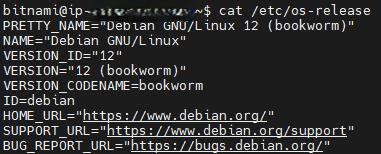
The Gold Standard: cat /etc/os-release
This is the most recommended method, supported by almost all modern Linux distributions.
Bash
cat /etc/os-release- Why use it? It displays the distribution Name, Version, ID, etc., in a standardized format.
- Engineer’s Tip: This is the most reliable file to use when writing scripts to automatically determine the OS.
Summary of System Info: hostnamectl
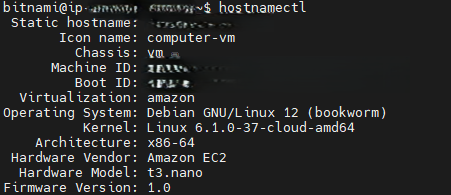
Provided by the latest Linux environments using Systemd, this command offers a very clean output.
Bash
hostnamectl- Available Info: It summarizes not just the hostname, but also the Operating System, Kernel version, and Architecture (x86_64, etc.).
- Recommendation: Best for a quick overview of the system’s overall specifications.
Checking Kernel Info: uname -a
A traditional command to check the Kernel information, the heart of the operating system.
Bash
uname -a- Available Info: Outputs the kernel name, hostname, kernel release number, and processor type.
- Recommendation: Essential when checking if a specific software requires a certain kernel version or when identifying security patch targets.

For Debian/Ubuntu Families: lsb_release -a
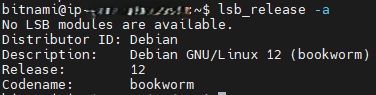
If you are using Ubuntu or Debian, this will be the most familiar command.
Bash
lsb_release -a- Features: It shows the distribution’s codename (e.g., jammy, focal), which is useful when installing OS-specific packages.
- Note: If it doesn’t work, the
lsb-releasepackage might not be installed. In that case, use Method 1.
For RedHat/CentOS Families
If the server you’ve accessed is from the RedHat family, this file is also worth checking.
Bash
cat /etc/redhat-releaseConclusion: Environment Identification is the Start of Troubleshooting
Attempting to configure a server without knowing which OS it runs on is like embarking on a journey without a map. Make it a habit to identify the server’s “identity” first using the commands summarized today.
In the next post, based on this system environment identification, we will cover how to set up Swap memory to significantly increase server stability.