(For the Korean version, click here)
If your internal processes are running fine and your logs are clean, but users still can’t access your services, it’s time to look outside. Whether it’s “Why can’t clients connect to my ready server?” or “Why can’t our server talk to that external API?”, these are questions we must answer.
Today, we will cover the standard Static IP configuration for Rocky Linux and the use of nc and mtr—essential tools for tracking down the culprit behind network failures.
1. Assigning a Static IP in Rocky Linux: The .nmconnection Method
In the past, the “standard” was editing ifcfg- files in /etc/sysconfig/network-scripts/. However, from Rocky Linux 8 and 9 onwards, the NetworkManager keyfile (nmconnection) format has become the new standard. This is the cleanest way to fix your IP in a CLI environment.
① Modifying the Configuration File (vi)
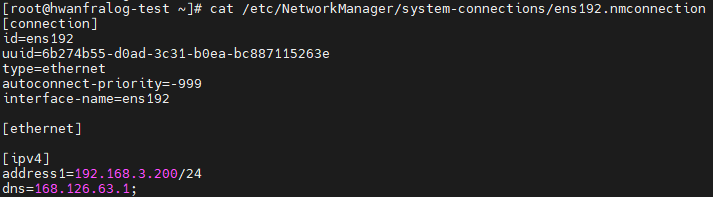
First, identify your network interface name using ip addr (usually something like ens192), then open the corresponding file.
sudo vi /etc/NetworkManager/system-connections/ens192.nmconnectionLocate the [ipv4] section and modify it as follows:
[ipv4]
method=manual
address1=192.168.1.100/24,192.168.1.1
dns=8.8.8.8;8.8.4.4;
② Applying the Settings (reload & up)
Saving the file isn’t enough. You must tell NetworkManager to “read the changes” and then restart the interface.
# 1. Load the file changes into memory
sudo nmcli connection reload

# 2. Activate the interface (The IP changes immediately)
sudo nmcli con up ens192
2. Is the Door Open? ss and lsof
Once the IP is set, you need to verify if your service is actually listening on the correct port.
ss -tulnp: Displays all currently open TCP/UDP ports. It is the modern, faster, and more accurate replacement for the oldnetstat.

lsof -i :80: Useful when you wonder, “Who is using my port 80?” It pinpoints the exact process (the culprit) occupying the port.

3. The Communication Detective: nc (Netcat)
When you can’t connect to a remote server, firing off ping indefinitely is often useless. Many servers block ping for security but keep service ports open. nc is the most reliable tool to ask, “Is port 80 open on that server?”
- Checking Port Status
# Check if port 80 is open on the target server (192.168.1.50)
nc -zv 192.168.1.50 80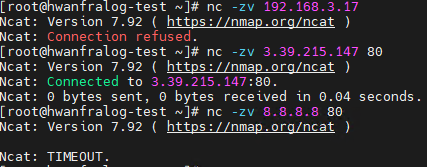
4. The King of Route Tracking: mtr (My Traceroute)
When you suspect packets are dropping somewhere in the middle, reach for mtr. Once you use it, you’ll never go back to traceroute. It combines ping and traceroute into a live, real-time dashboard.
- Usage:
mtr 8.8.8.8 - Why is it better? It tracks every “hop” from your server to the destination in real-time. By checking the Loss% column, you can immediately see which segment is dropping packets. It’s your best evidence when telling an ISP or infrastructure team, “It’s not our server; the packets are dropping at hop #5 in your network.”

5. [Practice] Network Connectivity Verification Routine
After setting up a new server, make it a habit to perform these 4 steps:
# 1. Verify my IP configuration
ip addr show ens192

# 2. Is my service port active?
ss -tulnp | grep :80

# 3. Is the path to the outside world clear?
mtr -c 10 -r 8.8.8.8

# 4. Can I reach a specific port on a remote server?
nc -zv google.com 443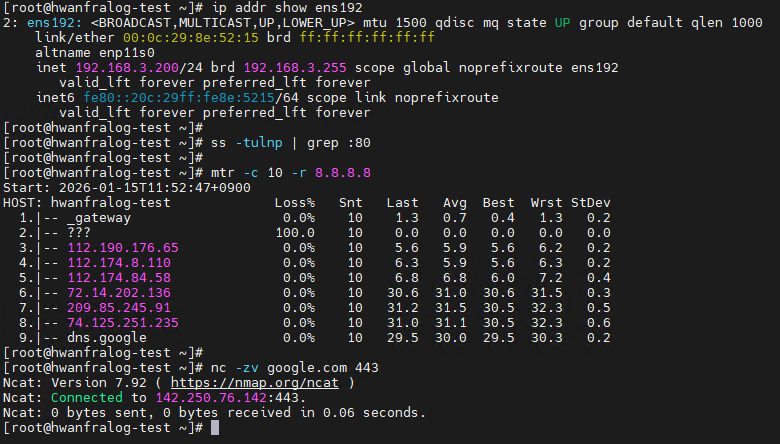
💡 Engineer’s Insights: “Data is the Best Defense”
In the professional world, “Accountability” is often just as important as the technical solution itself. During collaboration, figuring out whether a problem lies with the “Server” or the “Network” is a daily occurrence.
When another team says, “We can’t connect to your server,” replying with a simple “It works for me” without evidence leads to a frustrating blame game. This is where today’s commands become your weapons. You use
ssto prove your service is alive,ncto confirm local communication is fine, and then present themtrresults to say: “Look, packets are dropping at an external hop. This is a network routing issue, not a server issue.”This isn’t just about shifting blame. It’s about using accurate data to draw the boundaries of the problem. Only then can everyone stop wasting time and the correct team can take action. Mastering network commands is, ultimately, the art of proving your team’s innocence and protecting your resources from unnecessary finger-pointing.